

The writing loop
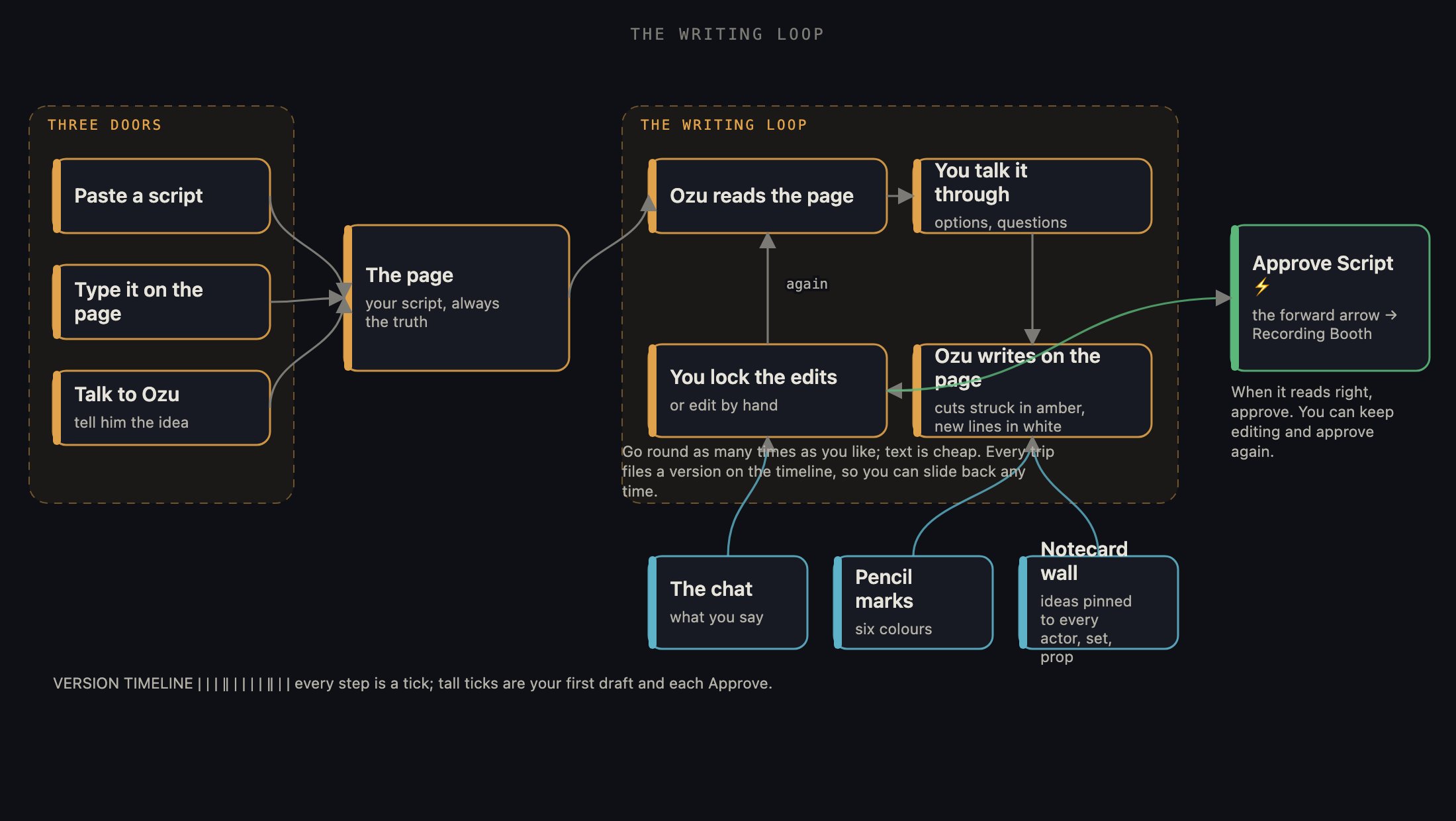
Words come in through three doors, go round the loop with Ozu as many times as you like, and leave through one: Approve Script.
1 · The room at a glance
Three columns. On the left, the notecard wall. In the middle, the script, with a row of tools above it and the listening controls below. On the right, Ozu: a small log of his edits, then the chat. The forward arrow at the top right is the door to the next room.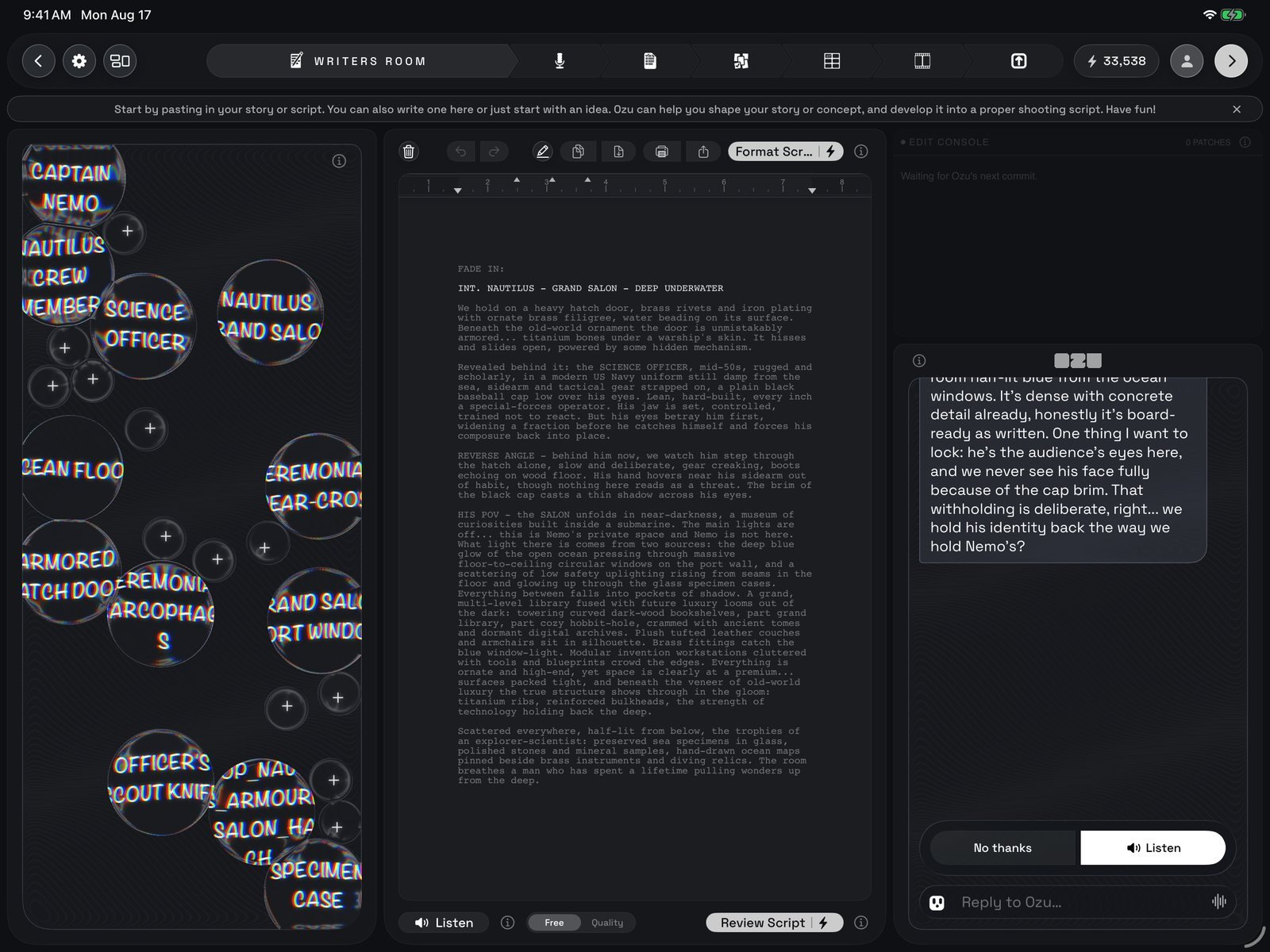
The Writers' Room: notecard wall on the left, the script in the middle, Ozu on the right.
2 · Getting words on the page
Three doors, all open. Paste: arrive with a script on the clipboard and an empty page fills with it on its own; the paste button in the tool row does the same any time. Type: tap a word to start typing right there, or the space beside the pages to type at the end. You type it flat in the typing surface and the page lays it out as a screenplay when you tap outside the text. Undo and redo cover your own typing. Talk: tell Ozu the idea in the chat, or tap Review Script, and he writes with you (next section). It helps to write like a screenplay: scene headings, action, character names, dialogue. Paste a script that runs to many scenes and Ozu opens a chat about it, offering to split it into one project per scene in one folder; I’ll do it myself keeps it whole. The trash button clears the page, after filing it as a version you can slide back to.3 · Writing with Ozu
Tap Review Script below the page, or just type to Ozu in the chat (you can dictate). A writing session opens: he reads the page, says what is working, asks the questions a good producer would, and hands you options. You call the shots. Every turn spends a little in credits; the ⓘ beside the button explains what a session usually costs. His answers often come with multiple-choice chips you can tap instead of typing. When you agree on a change, he puts pen to paper. The page scrolls to the passage, what he is cutting is struck out in amber, and what he is writing appears in white, line by line, under the OZU’S EDITS header, marked PENDING YOUR APPROVAL. Above the chat, the edit console logs every patch: where he wrote, how much he added, how much he cut. When he works scene by scene, the chat header counts the scenes off. You decide what sticks. LOCK EDITS settles the round into the page. EDIT TEXT hides the marks and gives you the plain editor; View Changes brings them back. After a rewrite he offers to read just the passages he changed. If a whole session went the wrong way, the options menu in the chat header can restore your original draft from before it began.4 · Marking it up with the Pencil
The highlighter button in the tool row arms Apple Pencil markup. A strip appears over the page with three tools: highlighter, pen for circling and drawing, eraser. Double-tap or squeeze the Pencil to swap highlighter and eraser. Your finger still scrolls; only the Pencil draws. Each highlighter colour means something. Tap the ink well to open the six meanings: Change (yellow), rework this. Tighten (pale blue), same beat, fewer words. Expand (deep teal), there is more here. Question (white), ask me about this. Cut (black), take it out. Keep (blue), leave it alone. Cut and Keep carry a bolt: Ozu acts on those without being told. The other four name the passage; your words in the chat say what to do with it. Every mark rides along with your next message, and marks stick to the words themselves, so they stay put when the script above them changes.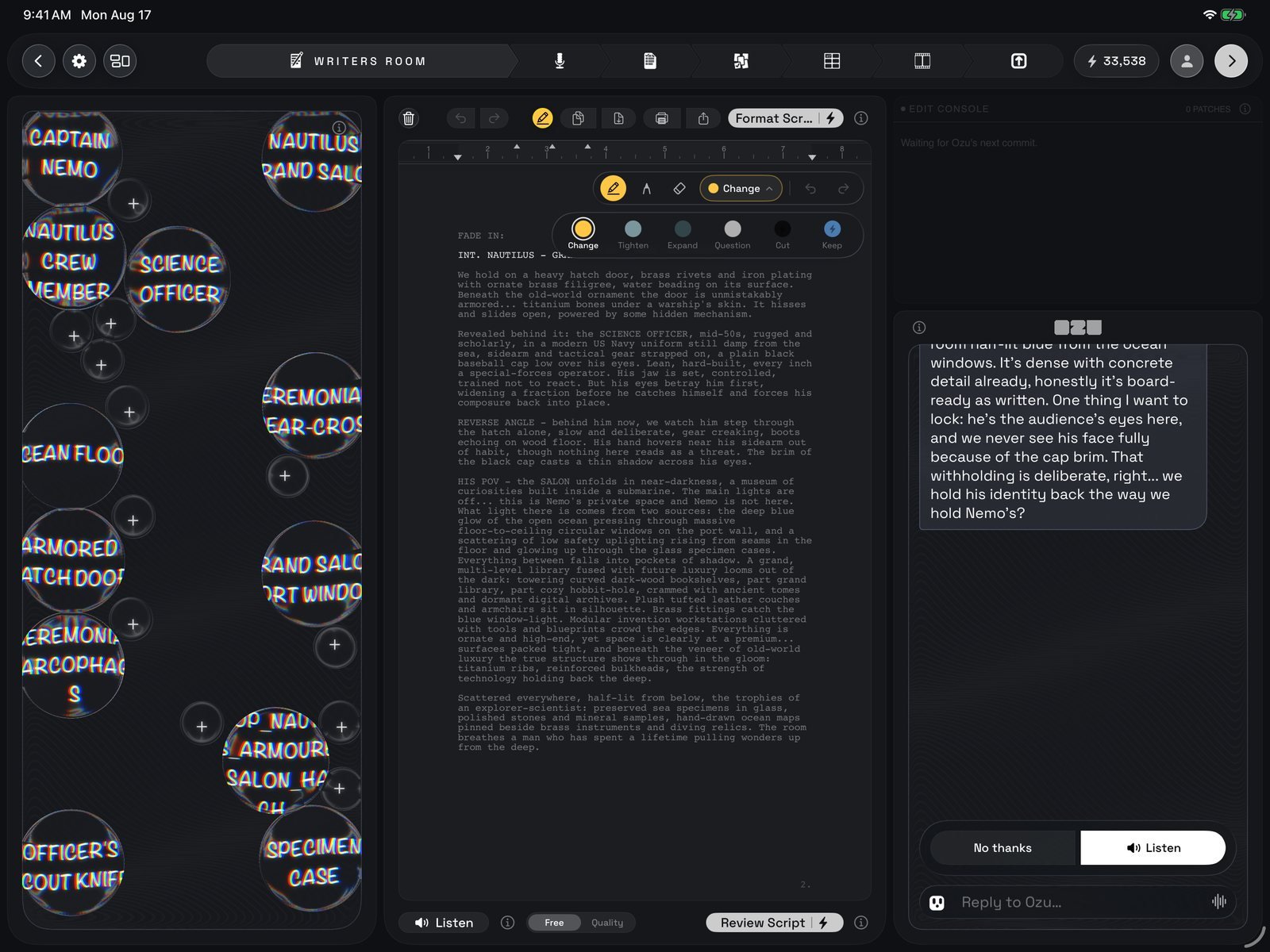
The ink well open: six highlighter meanings, with Cut and Keep carrying the bolt.
5 · The notecard wall
The left column is your idea wall. Every actor, set and prop gets a bubble with its name, and the ideas about it cluster around it, so any part of your world shows everything you believe about it at a glance. Talk to Ozu while you write and he pins the thought under the right name. Tap the + beside a name to add your own: write or draw it with a finger or the Pencil, then Done. Handwriting is read as words, so Ozu can use what you wrote. Tap a bubble to rewrite or delete it; drag bubbles around and the wall makes room.6 · Every draft, on a timeline
Under the page sits the version timeline: a ruler with a playhead. Every edit is a small tick; your first draft and each Approve Script are the tall ones. The far right is your live draft. Slide left and the page shows that older draft, read only; hold to select and copy a passage you want back. Ozu can see which version you are parked on, so you can also just ask him to bring a passage or a whole draft back; a restore is filed as a new version, never over the old. Park at the far right and the live editor returns.7 · Listening to your script
Tap Listen in the footer under the page; the Free / Quality toggle picks the voice. Free is the iPad’s own voice and costs nothing. Quality is Ozu’s voice, generated for a few credits; the price is on the button. Both are yours to choose in Settings. While he reads, the spoken word lights up and everything off the live line dims, so there is one line to follow. The page follows on its own; scroll away and a chip takes you back. Tap the page to pause. The play button pauses and resumes, the speed segments set the pace, and the jog wheel opens out of its button: the inner dial moves a word at a time, the outer ring a line at a time. Done Listening gives the page back. Full key: Listening controls.8 · Formatting, printing and sharing
Format Script in the tool row rewrites the page into standard screenplay layout and leaves craft notes underneath (✕ clears them). It spends credits; the ⓘ beside it explains what it usually costs. You only need it if you want the layout tidy now; the Breakdown formats the script anyway. Also in the tool row: copy the whole script, print it as a numbered draft with a title page, or share it as a PDF.9 · Approve the script
When a round of writing wraps, Ozu offers two chips: Approve Script and Keep Editing. Approve files this draft as a proper version, the tall tick on the timeline, and a Script locked banner and a pointer bubble point at the forward arrow. You stay in the room and can go on editing and approve again later. Keep Editing sets the chip aside until the next wrap. If the script has grown to many scenes, the offer to split it into scenes appears here too, unless you already chose I’ll do it myself.What happens next
The forward arrow takes the approved script into the Recording Booth, where your cast auditions and records it and Ozu composes the music. After that the Script Breakdown turns the script into cast, sets, props and shots. Text is cheap and pictures are not, so make sure the script says what you want before you go.This page mirrors the front page of the in-app guide. Inside Ozu, tap ? on the Project Shelf for the guide, or the ⓘ beside any control for that control’s own write-up.