

How Ozu is laid out
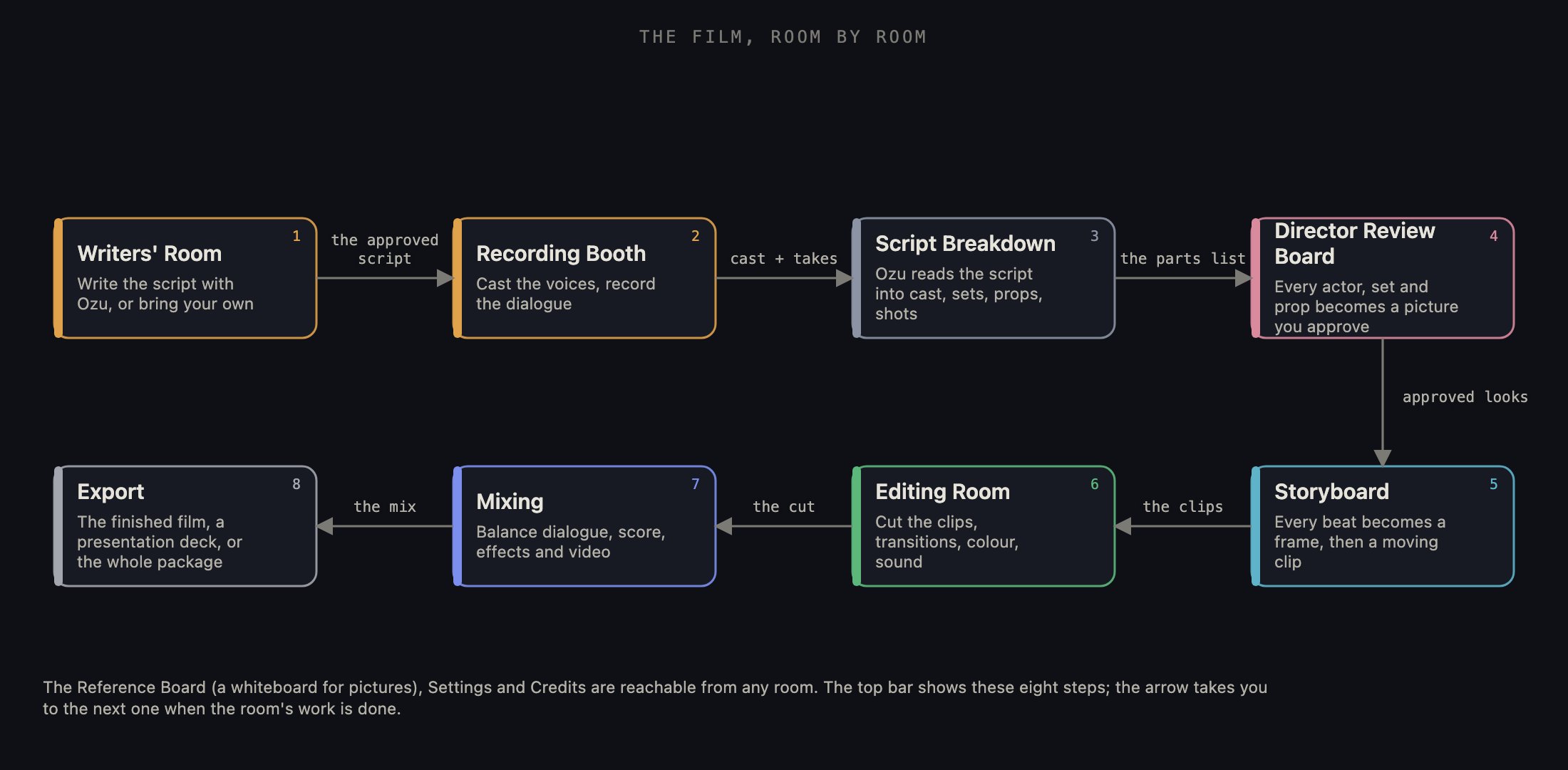
Eight stages, left to right, with what each one is for. A film moves through them in this order; each room hands the next what it needs.
1 · The top bar
The bar at the top is the same in every room. From the left: the Back puck steps you back one room, and holding it leaves the film for the project shelf. Next to it, the gear opens this film’s Project Settings, and the Reference Board puck opens your Reference Board over whatever room you are in. In the middle sit the seven step chevrons, in pipeline order. The room you are in shows its name; the others show only their icon. A room you have unlocked is bright, and a tap jumps straight there. A room that is not ready yet is greyed out; tap it and a small callout hangs under the bar saying what has to happen first (tap it, or anywhere in your work, to close it). Tap the chevron you are standing on and the callout says what this room is for. While a room has work running, its icon moves and its name gets a soft sweep of light, so you can see it from anywhere. On the right is your credit pill with your balance; tap it for Plans & Credits, where you can buy a pack, change your plan or read this project’s receipt. With no internet the pill turns into an amber OFFLINE marker instead. Beside it, your avatar opens the account menu (part 5). Last comes the Forward puck. It never disappears, but it stays dimmed until the room is ready to move on; each room decides what forward means. When the next room is one you have not visited yet on this film, the puck lights up yellow to say so, and while the step ahead is being prepared the arrow becomes a spinner so you know the tap landed.
The top bar mid-film: the Back puck, settings and Reference Board on the left; the seven room icons with the current one named; the credit pill, your account and the forward puck on the right.
2 · Talking to Ozu
Every room has an Ozu chat, and it is the same window everywhere. At the top is Ozu’s mark with a small ⓘ that explains who Ozu is. Below it runs your conversation, with the time marked at each new hour. At the bottom is the composer, the line that says “Message Ozu…”. Type or dictate, press Return, and Ozu answers about whatever room you are in: your script, a design, a shot, the cut, your credits. On a hardware keyboard, Shift+Return makes a new line without sending. The button inside the composer changes with what you are doing. When the field is empty it is a waveform: tap to dictate, speak, and your words type themselves in over a live level meter; tap again to stop. The moment there is text, it becomes the send arrow. While Ozu is answering, it becomes a stop button that cuts his reply short (what you typed stays put), and his mark at the front of the composer keeps looping while anything he is doing in the room is still running. With no internet the composer shows an offline marker: you can keep typing, and send comes back when you reconnect. Sometimes Ozu offers choices instead of asking you to type. They rise out of the composer as a short shelf of numbered options and action buttons: tap an option and its words go to Ozu as your reply; tap an action button (Approve Script, Generate this video) and it does that thing. The composer stays at the bottom of the shelf as the last option, so you can always write your own answer. Hold any message to copy its text. When a message is about a picture, small thumbnails ride along with it, and tapping one opens that picture where the room allows. In rooms where Ozu generates something, one or two folded cards sit above the chat so the room stays a conversation. The PROMPT card holds the written prompt Ozu works from for this shot, design or sound: tap the header to open it, read or change the text, and close it again (the ⓘ explains what a prompt is). The RECIPE BOOK packs the generation controls under one header: the prompt, the model, how many takes to make, the button that spends credits on a new take and, where the room uses picture references, a + to add them (its ⓘ explains what is inside). A model picker lists the models Ozu can use for that job; the price beside it follows your choice, and reset returns it to the film’s default. In the two rooms where the chat floats over your work, the Reference Board and the Editing Room, a round Ozu button in the bottom corner opens and closes it.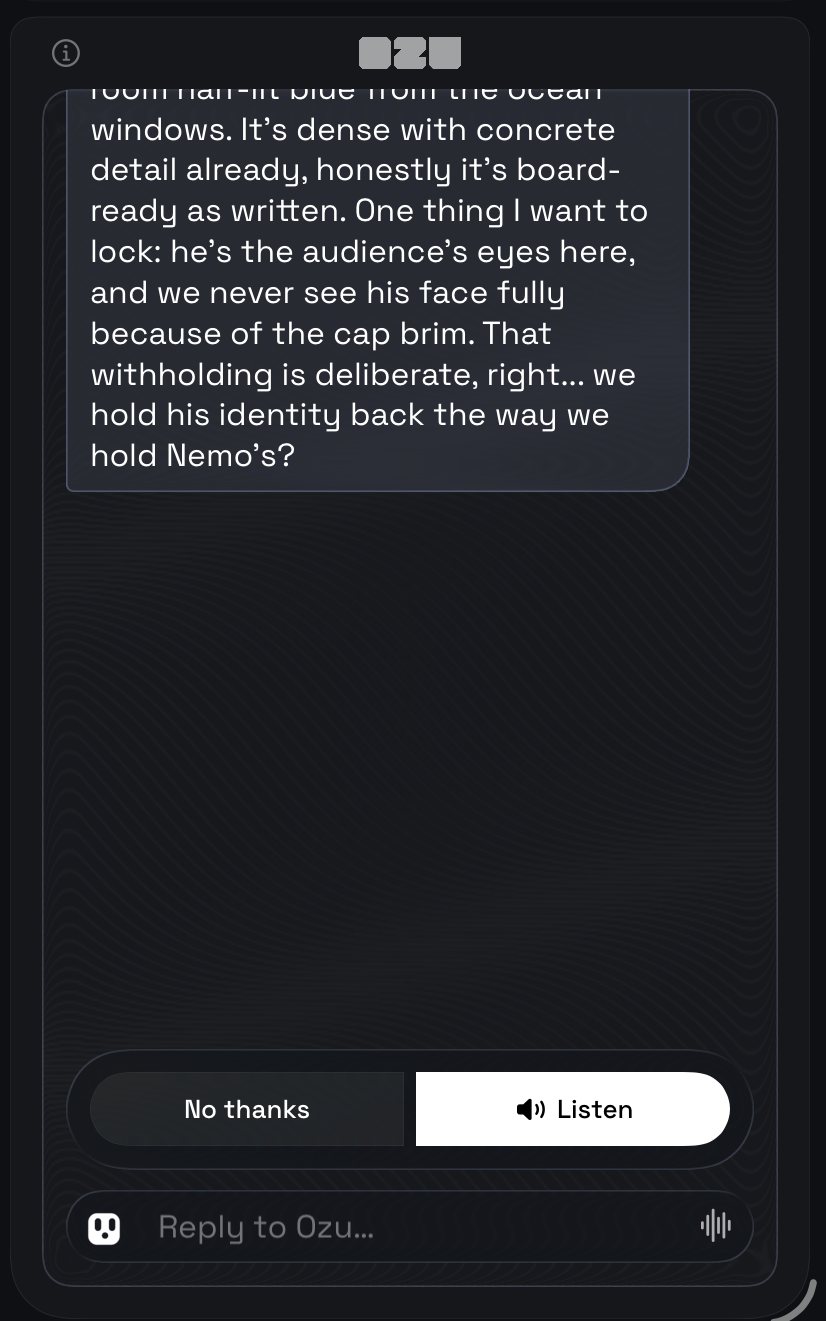
An Ozu chat column: his message, a two-button choice shelf (No thanks / Listen) above the composer, and the dictate button at the right of the field.
3 · Help wherever you are
Every control in Ozu can explain itself, and the words all come from one guide. The small ⓘ beside a control or a panel is an info button: tap it and a card opens with the guide’s plain-language write-up; “Open in guide ›” at the bottom takes you to the full page. Every control also has a hover tip: rest the trackpad pointer or the Apple Pencil over it for half a second and a one-line description fades in above it. A finger can hold on a control to see the same tip, except where a hold already does something in that room; there, the interface function wins. Links inside any of these notes are guide links and open the topic they name. Under the top bar, a room may show one slim sentence answering “what do I do now?”. It follows what the room needs from you next; the ✕ at its end hides that hint for good once you know the room. The whole guide, searchable and grouped by room, is behind the ? button on the project shelf; About this guide tells you how to use it. And you can always just ask Ozu: he knows where you are and what the buttons do.4 · Banners, welcomes and prices
Below the top bar every room has one slot for messages, and it behaves the same way everywhere. One message shows at a time. If something is running, a progress banner holds the slot until the work is done; you never lose a live progress bar. Otherwise the messages take turns every few seconds, small dots show where you are in the rotation, and the ✕ on a message hides it. Errors are red; hints and notices keep their own colour. With nothing to say, the slot folds away.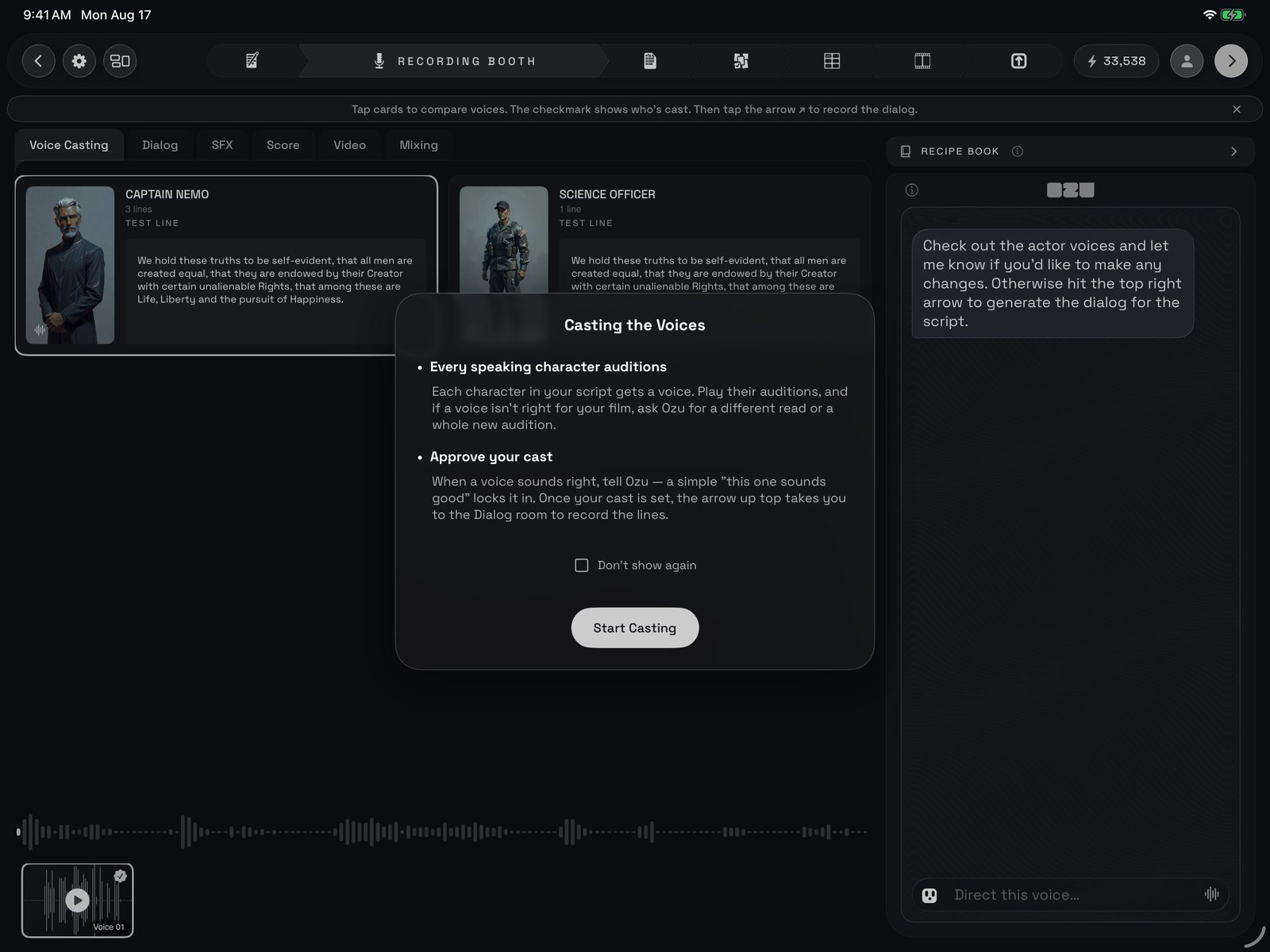
A room's welcome card, here the Recording Booth's: two or three short points, a Don't show again box, and one button to start.
5 · Your account, feedback and support
Your avatar in the top bar opens the account menu, with your email at the top. Manage Storage shows what Ozu keeps on this iPad and lets you clear it. The next four rows reach the Ozu team through one in-app form: Request a Feature for an idea, Contact Support for a question, Report a Bug when something is not working, and Report a Concern to flag content that breaks the guidelines. Bug and support messages carry basic device details so the team can help; a concern asks for a reason first. Say what happened in the details box and tap Send; every concern is reviewed. Log Out returns you to the sign-in screen (Apple, Google, or email and password). Ozu’s own Settings live behind the gear on the project shelf: your account, look and feel, your own API keys, data, and legal, where the Terms of Service and Privacy Policy open to read in the app. Inside a film, the gear beside Back is the film’s own settings instead.What happens next
Now that the frame is familiar, start where every film starts: the Writers’ Room, where your story becomes a shooting script and Ozu shapes it with you. From there the top bar’s chevrons take you room by room to Export.This page mirrors the front page of the in-app guide. Inside Ozu, tap ? on the Project Shelf for the guide, or the ⓘ beside any control for that control’s own write-up.