

The shelf at a glance
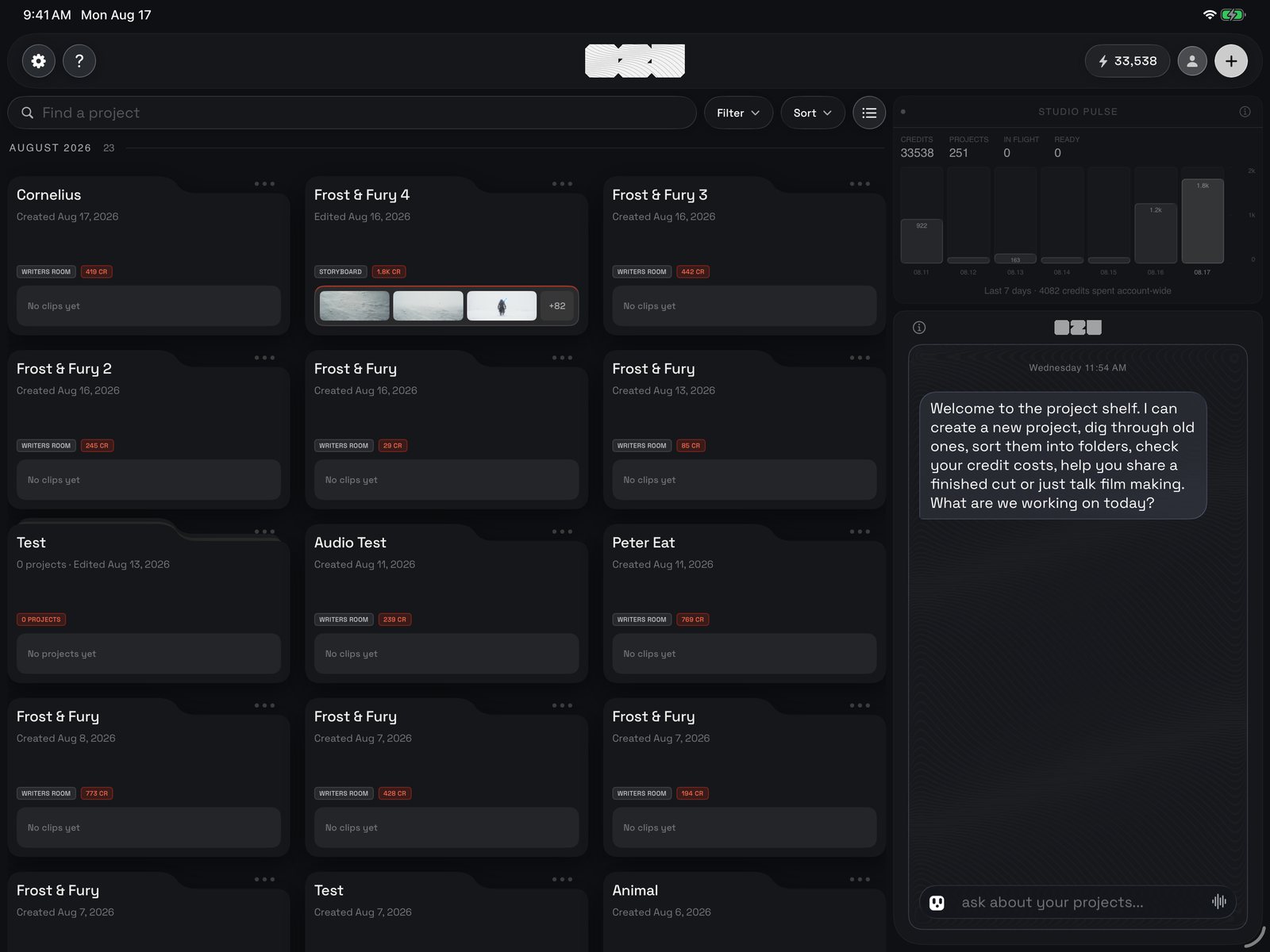
The whole shelf: the top bar across the top, the search row and your cards on the left, the studio console and your chat with Ozu on the right.
1 · The top bar
Left to right. The gear opens Ozu’s settings: you, how the app looks, studio defaults, how the shelf opens, your own API keys, storage, and the legal pages. The ? opens this guide. The credit pill shows how many credits you have; tap it for plans and credit packs, and read how a price is worked out before you spend. Your avatar opens the account menu: storage on this iPad, feature ideas, support, bug reports, reporting a concern and log out. The + on the far right starts something new: a project (you name it, and it opens straight away) or a folder. The very first time you arrive, a welcome card sits over the shelf. It tells you your starting credits, explains how your work is handled (it stays yours), and once you tap Next it asks you to name your first project. Ozu creates it and takes you in; Skip for now leaves you on the shelf with the + button pointed out. New accounts also get a small demo project so you can look around the rooms without spending credits. Now and then a slim notice appears under the bar when the Terms have changed: Review them, or tap Got it.2 · Finding a film
The row above the cards narrows the shelf. Type part of a name in the search field and only matching projects and folders stay; the × brings everything back. The date pill keeps only films created in a window: this month, the last 30 or 90 days, this year, or a custom range with a From and a To day. The Sort pill orders the shelf by recently updated, recently created, or name. The last button switches between big cards and a compact list; which one the shelf opens in is a setting.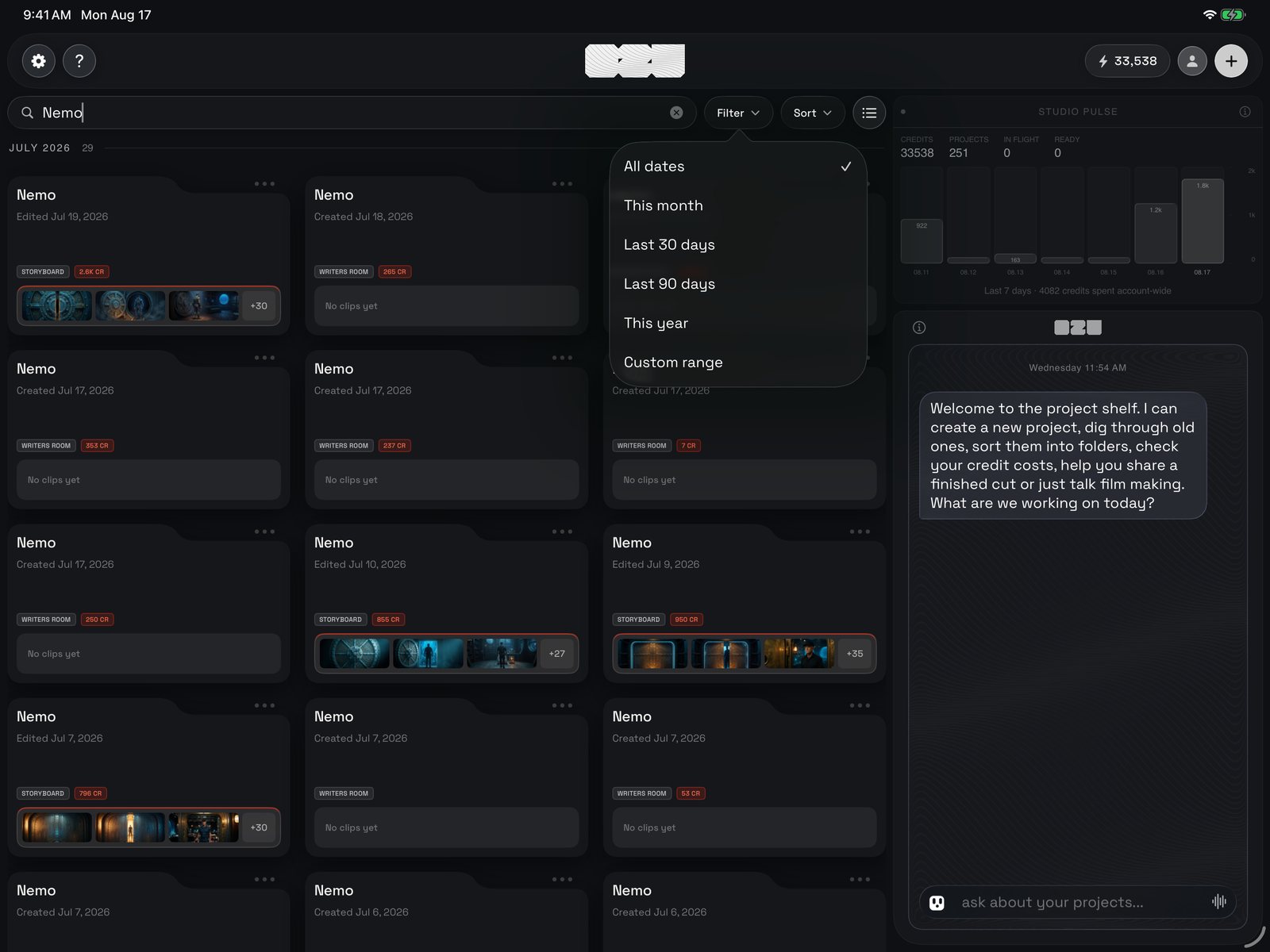
The search row with the date filter open: All dates, This month, Last 30 days, Last 90 days, This year, Custom range.
3 · Cards, rows and folders
Your films are grouped under month headers, newest month first, and the header stays pinned while the cards slide under it. Each project card shows the film’s name, when it was created or last edited, a chip for the room the film has reached (WRITERS ROOM, STORYBOARD, EDITING ROOM…) or WORKING while something is generating, a chip with the credits it has spent, a small tick when it is kept offline, and a strip of stills from its storyboard. Tap the card to open the film. The ••• in its corner (or holding the card) opens its menu: Make Available Offline, Move Out of Folder when it lives in one, Rename and Delete. Delete asks first, and cannot be undone.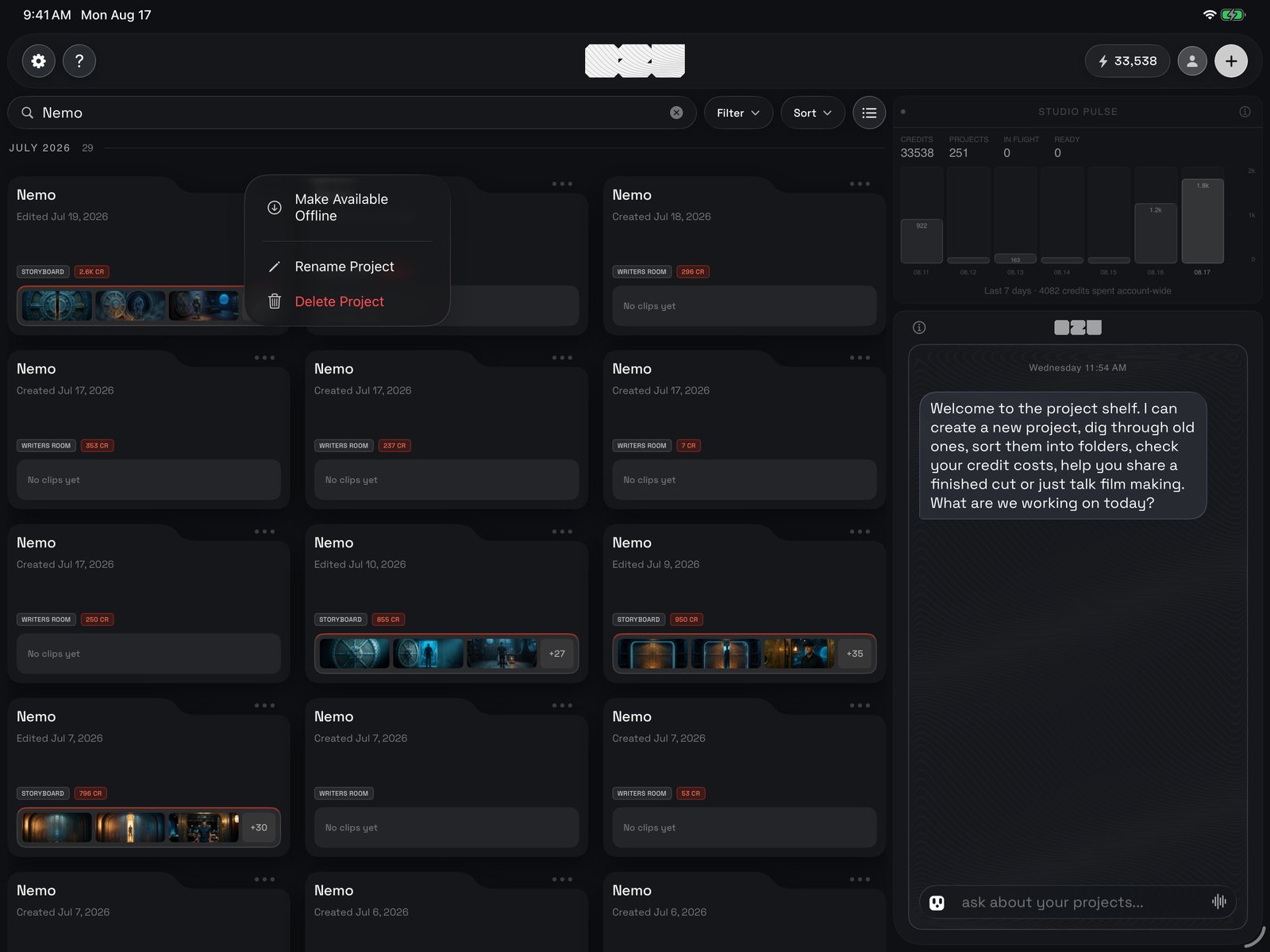
A project card with its ••• menu open: Make Available Offline, Rename Project, Delete Project.
4 · Opening a film, and keeping one on this iPad
Tap a card and Ozu fetches what the film needs before it opens. If everything is already on this iPad you go straight in; if not, a cover shows the download’s progress, and Cancel takes you back to the shelf keeping whatever has arrived, so the next tap resumes rather than starting over. To work somewhere without internet, choose Make Available Offline from a film’s menu. A ring on the card fills as it downloads, then becomes a tick. If it stalls, Retry Download picks up where it stopped. Remove Download frees the space on this iPad; the film itself stays safe online. Everything Ozu keeps on this iPad, and how much room it takes, is listed under Manage Storage in the account menu.5 · The studio console
The small panel at the top of Ozu’s column. Its resting face is Studio Pulse: your credits on hand, how many projects you have, how many are generating right now, and how many have a finished cut ready to share on this iPad. Under the numbers, seven bars show credit spend over the last seven days, today on the right; taller means more spent that day. A line at the bottom notes the latest thing that happened on the shelf. The ⓘ in the console’s corner always explains the face that is showing.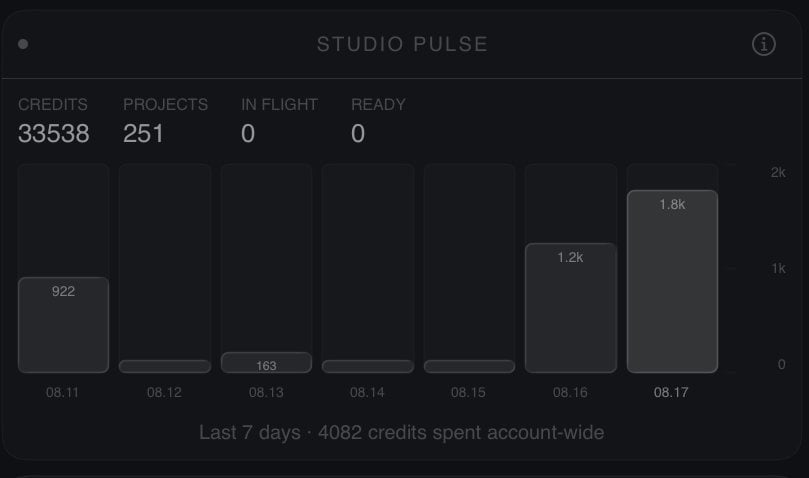
Studio Pulse: four numbers, the seven-day spend bars, and the activity line.
6 · Talking to Ozu
Below the console is your chat with Ozu about the shelf. He can create a new project, dig through old ones, sort them into folders, check your credit costs, help you share a finished cut, or just talk filmmaking. Type in the composer and press Return, or dictate. When he has something you can act on, choice chips appear above the composer: Open a film he found, Buy credit packs, or, on an empty shelf, a couple of story starters that create a named project in one tap. What you say here is remembered between visits. Sharing a cut needs a finished export on this iPad; if there is none yet, he tells you so and offers to open the film so you can run Export first.What happens next
Tap a card, or name a new film, and you leave the shelf for the pipeline. A new project opens in the Writers’ Room, where you write the script with Ozu; from there the film moves on to the Recording Booth, Script Breakdown, Director Review Board, Storyboard, Editing Room, Mixing and Export. Whenever you close a project you land back here, and the card’s chip shows how far it got.This page mirrors the front page of the in-app guide. Inside Ozu, tap ? on the Project Shelf for the guide, or the ⓘ beside any control for that control’s own write-up.