> ## Documentation Index
> Fetch the complete documentation index at: https://docs.ozu.studio/llms.txt
> Use this file to discover all available pages before exploring further.
# The Storyboard
> What the Storyboard does and how its parts fit together.
The Storyboard is where your film gets its look. Every shot in your script arrives here as a still frame that Ozu drew from your approved cast, sets and props. You go frame by frame: check the framing, the blocking and the light, talk to Ozu or draw on the picture until it is right, then animate the frames you want to move. The frames and clips you choose here are what the [Editing Room](/guide/editing-room) cuts together.
## The frame-first loop
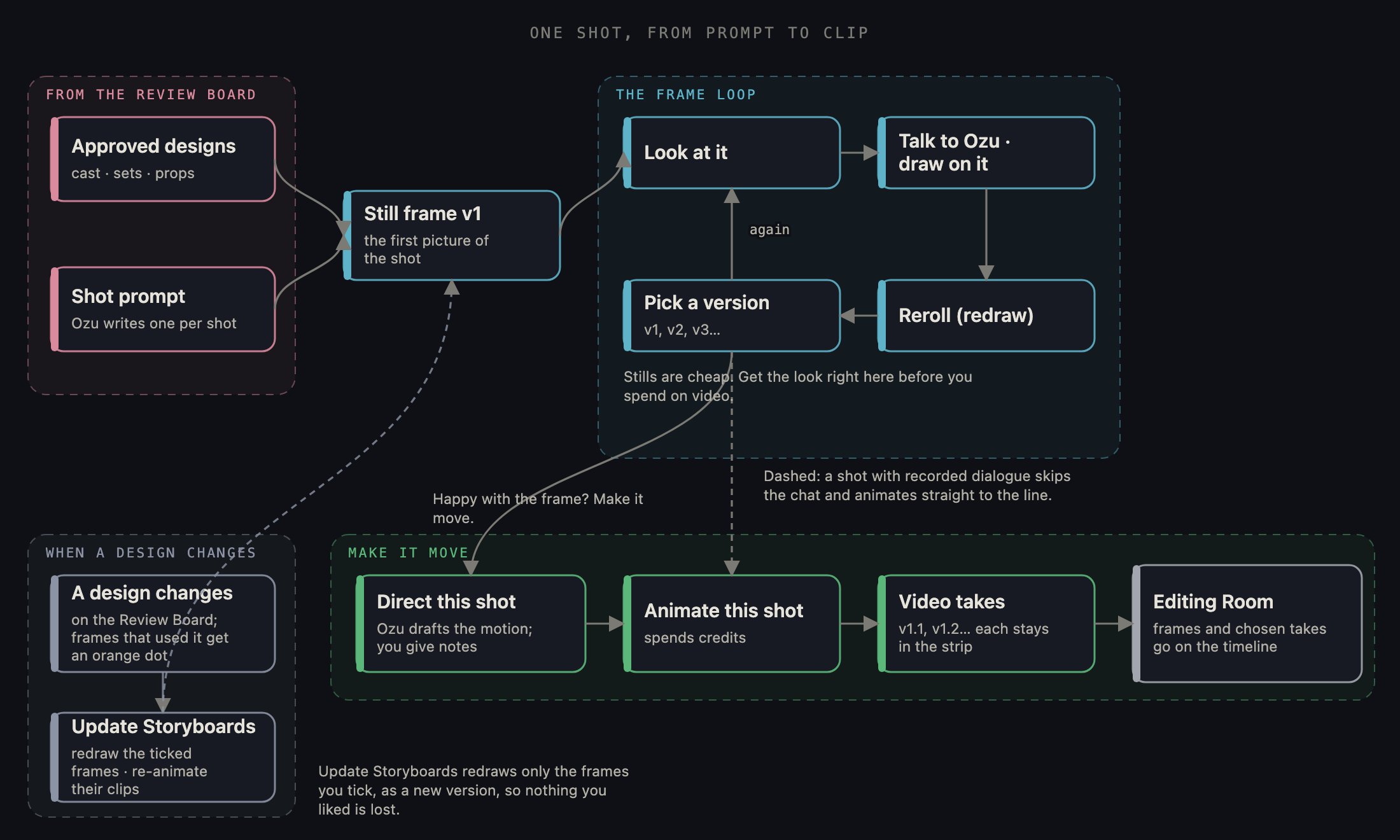 Read it left to right. A shot starts as words: the shot prompt Ozu writes for it after the [Review Board](/guide/director-review-board). Those words, plus your approved designs, become the first frame of the shot. In the middle is the loop you spend most of your time in: look at the frame, tell Ozu what to change or draw on it, redraw, pick the version you like. Only when the still is right do you take the lower path and animate it; video costs more than a still, and making a frame move never fixes a frame you don't like. Off to the side is the ripple: when a design changes back on the Review Board, the frames that used it go stale, and Update Storyboards redraws them.
## 1 · Arriving: shot prompts and frames
When you first come in from the [Review Board](/guide/director-review-board), Ozu is still writing a shot prompt for every frame; a wait card tells you so. You can continue in the background and come back, or, if the writing failed, retry it. As frames render, a [banner](/guide/everywhere-in-ozu) under the top bar counts them in, and each shot's thumbnail spins until its picture lands. If a few never land, a pill offers to redraw just the unfinished ones with the same prompt and references. The forward arrow waits until every shot has a frame.
Read it left to right. A shot starts as words: the shot prompt Ozu writes for it after the [Review Board](/guide/director-review-board). Those words, plus your approved designs, become the first frame of the shot. In the middle is the loop you spend most of your time in: look at the frame, tell Ozu what to change or draw on it, redraw, pick the version you like. Only when the still is right do you take the lower path and animate it; video costs more than a still, and making a frame move never fixes a frame you don't like. Off to the side is the ripple: when a design changes back on the Review Board, the frames that used it go stale, and Update Storyboards redraws them.
## 1 · Arriving: shot prompts and frames
When you first come in from the [Review Board](/guide/director-review-board), Ozu is still writing a shot prompt for every frame; a wait card tells you so. You can continue in the background and come back, or, if the writing failed, retry it. As frames render, a [banner](/guide/everywhere-in-ozu) under the top bar counts them in, and each shot's thumbnail spins until its picture lands. If a few never land, a pill offers to redraw just the unfinished ones with the same prompt and references. The forward arrow waits until every shot has a frame.
 ## 2 · The shot list
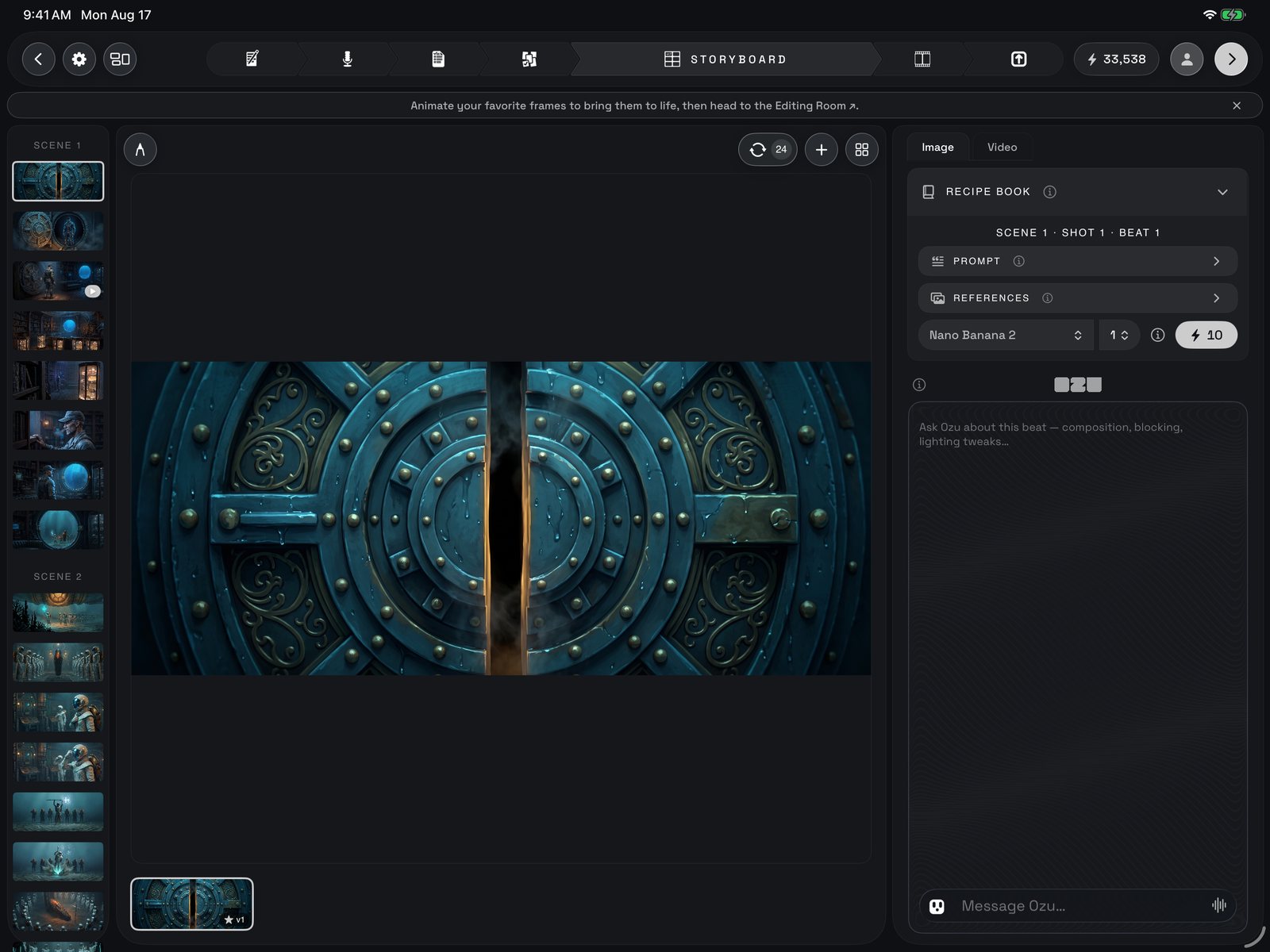
Down the left is every shot in the film, grouped by scene and numbered. Each one is a beat: one card, one frame. Tap a thumbnail to work on that shot; hold and drag it above or below another to change its order within the scene. Small marks on a thumbnail tell you its state at a glance: a spinner while it renders, a play badge once it has video, a red mark if a video render failed, and a quiet orange dot when a design it used has changed since. Shots you made on the [Reference Board](/guide/reference-board) and added to the film sit in their own Reference group at the end.
## 3 · The viewer
The middle of the room shows the selected frame big. Pinch to zoom in and look around. The pen in the top-left corner lets you draw on the frame (circle what should move, sketch where the actor should stand), and your sketch becomes a picture Ozu sees the next time you talk to him. The plus adds a spoken line to this shot: pick who says it, type the line and an optional note on delivery, then add it. A shot's lines show as subtitles under its frame.
The grid button flips the viewer into a contact sheet: every frame of every scene at once, in the order they play, with each shot's dialogue hanging below it as a card. Tap a frame to select it, drag frames to reorder within a scene, and drag a dialogue card onto another frame to move that line to that shot.
Under the viewer are the filmstrips. The lower strip is every still version of this shot; tap a version to see it, and the one you are looking at when you move on becomes the shot's frame. Once the shot has been animated, a second strip appears above it with every video take; tap one to make it the take this shot uses. A play button then sits on the still: play it in place, tap the picture for the controls, pause, scrub to any moment, and close to go back to the still.
## 2 · The shot list
Down the left is every shot in the film, grouped by scene and numbered. Each one is a beat: one card, one frame. Tap a thumbnail to work on that shot; hold and drag it above or below another to change its order within the scene. Small marks on a thumbnail tell you its state at a glance: a spinner while it renders, a play badge once it has video, a red mark if a video render failed, and a quiet orange dot when a design it used has changed since. Shots you made on the [Reference Board](/guide/reference-board) and added to the film sit in their own Reference group at the end.
## 3 · The viewer
The middle of the room shows the selected frame big. Pinch to zoom in and look around. The pen in the top-left corner lets you draw on the frame (circle what should move, sketch where the actor should stand), and your sketch becomes a picture Ozu sees the next time you talk to him. The plus adds a spoken line to this shot: pick who says it, type the line and an optional note on delivery, then add it. A shot's lines show as subtitles under its frame.
The grid button flips the viewer into a contact sheet: every frame of every scene at once, in the order they play, with each shot's dialogue hanging below it as a card. Tap a frame to select it, drag frames to reorder within a scene, and drag a dialogue card onto another frame to move that line to that shot.
Under the viewer are the filmstrips. The lower strip is every still version of this shot; tap a version to see it, and the one you are looking at when you move on becomes the shot's frame. Once the shot has been animated, a second strip appears above it with every video take; tap one to make it the take this shot uses. A play button then sits on the still: play it in place, tap the picture for the controls, pause, scrub to any moment, and close to go back to the still.
 ## 4 · The Image tab: reworking the still
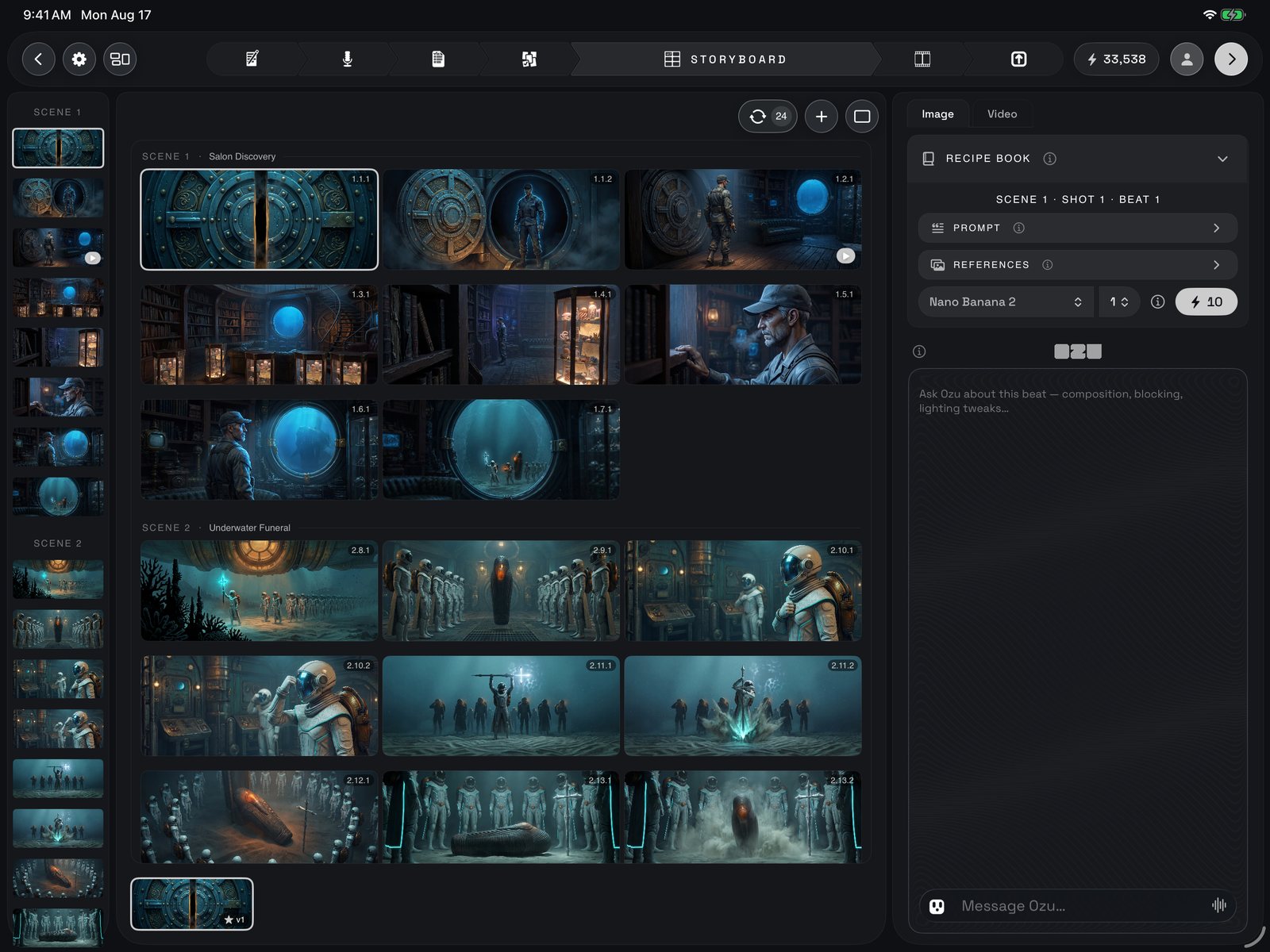
The right panel has two tabs, Image and Video. Image is where you get the still right. At the top is the shot's Recipe Book: the prompt Ozu wrote for this frame, then the references the picture model was shown: the actors, sets and props in the shot, plus any sketch or picture you added. Below sit the picture model for this shot, how many new frames one redraw makes, and the Reroll button; the price is on the button. Every redraw lands as a new version in the filmstrip; nothing you had is lost.
The prompt is not a text box. You change it by talking to Ozu in the chat below. Ask a question and he answers. Ask for a change ("tighter on her face", "make it dusk") and he rewrites the prompt and tells you it is ready for Reroll. Tell him to just do it and he rewrites and redraws in one go. He sees the frame you are looking at, and anything you drew on it with the pen.
## 5 · The Video tab: direct the shot, then animate
Once the still is right, switch to Video. The prompt here describes what happens during the shot: the camera move, the action, the mood. Ozu writes it after the frame lands, in a few named parts you can edit directly; a preview underneath shows how it reads for the model you picked. Beneath the prompt are the shot's settings: resolution, which decides which models are offered; length in seconds, rounded to what the model can make, with a warning when it is shorter than the shot's slot in the cut; and handles, a little extra footage on the end so you have room to trim (why the length is what it is). Then the video model, how many takes to make, and the Animate button with its price. Asking for two takes shows a confirmation first.
## 4 · The Image tab: reworking the still
The right panel has two tabs, Image and Video. Image is where you get the still right. At the top is the shot's Recipe Book: the prompt Ozu wrote for this frame, then the references the picture model was shown: the actors, sets and props in the shot, plus any sketch or picture you added. Below sit the picture model for this shot, how many new frames one redraw makes, and the Reroll button; the price is on the button. Every redraw lands as a new version in the filmstrip; nothing you had is lost.
The prompt is not a text box. You change it by talking to Ozu in the chat below. Ask a question and he answers. Ask for a change ("tighter on her face", "make it dusk") and he rewrites the prompt and tells you it is ready for Reroll. Tell him to just do it and he rewrites and redraws in one go. He sees the frame you are looking at, and anything you drew on it with the pen.
## 5 · The Video tab: direct the shot, then animate
Once the still is right, switch to Video. The prompt here describes what happens during the shot: the camera move, the action, the mood. Ozu writes it after the frame lands, in a few named parts you can edit directly; a preview underneath shows how it reads for the model you picked. Beneath the prompt are the shot's settings: resolution, which decides which models are offered; length in seconds, rounded to what the model can make, with a warning when it is shorter than the shot's slot in the cut; and handles, a little extra footage on the end so you have room to trim (why the length is what it is). Then the video model, how many takes to make, and the Animate button with its price. Asking for two takes shows a confirmation first.
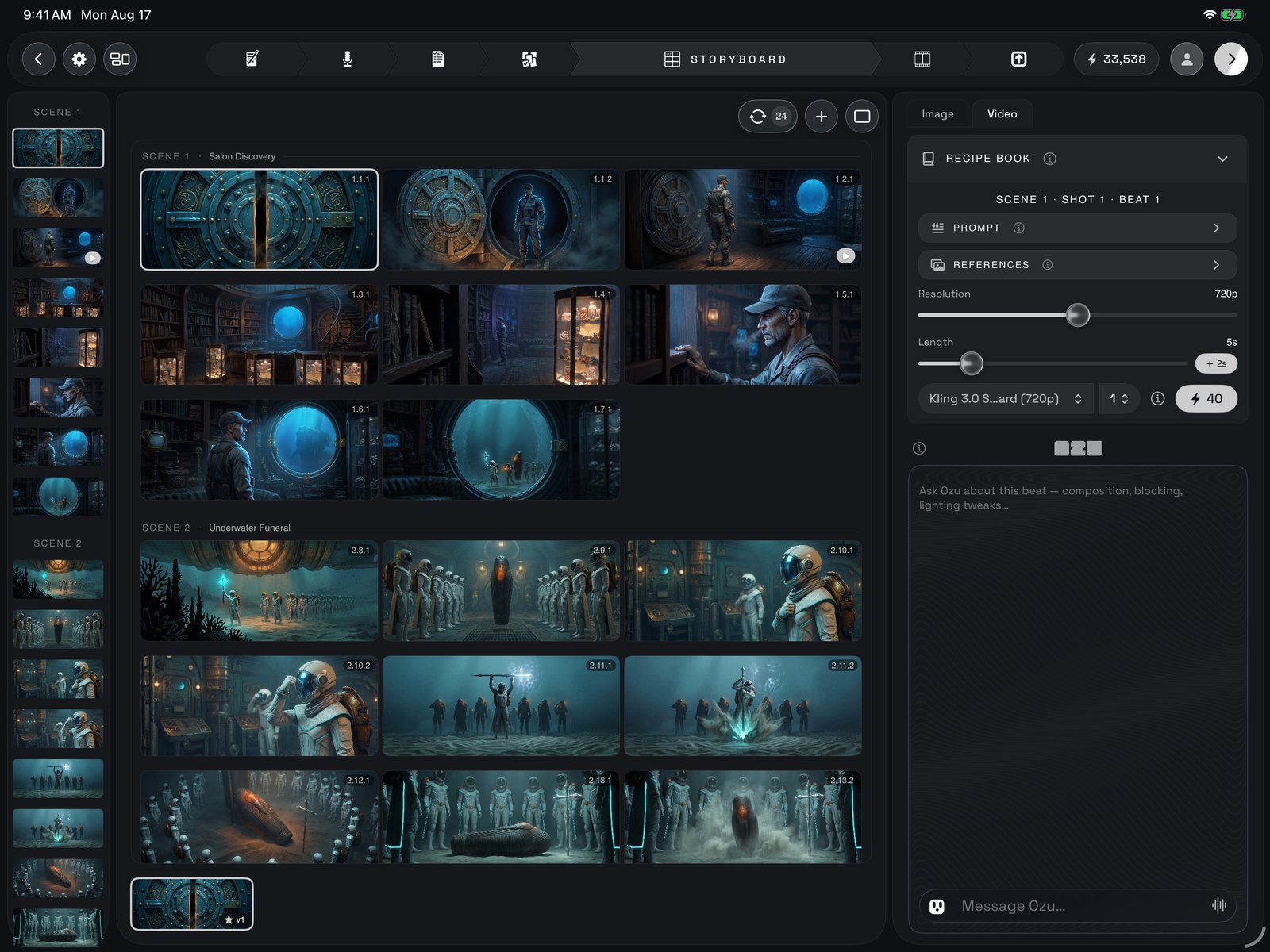 Animate does not spend anything yet. It opens a small conversation, Direct this shot: Ozu looks at the frame, tells you what the shot as written will do, and asks what should happen. Say "good to go", or give notes, and he rewrites the direction for the model you chose. Only Animate this shot fires the render. The one exception is a shot with a recorded line of dialogue from the [Recording Booth](/guide/recording-booth): it is animated to its line, mouth to words, and skips the chat. The take lands in the video strip above the stills and the shot's thumbnail gets its play badge. Don't like it? Redirect and animate again; every take stays.
## 6 · Update Storyboards: when a design changes
Frames are drawn from your designs, so when you go back to the [Review Board](/guide/director-review-board) and approve a new look for an actor, a set or a prop, the frames that used the old look are out of date. An Update pill appears in the viewer's header with a count. Tap it for a checklist of the affected shots, grouped by scene, each with the reason it went stale. Tick or untick shots to choose what to redraw; the count and the price follow. If any of those shots already have video, you can also re-animate their clips, off by default because video is the expensive part. Pick a speed: Fast renders in minutes; Batch is cheaper but can take up to a day and is offered only when every ticked shot uses a model that supports it. Then run it. If some frames fail, the old ones still stand, the credits for the failed frames come back, and you can resubmit just the failed ones.
## What happens next
When every shot has a frame, the forward arrow at the top saves the version you picked for each shot and opens the Editing Room. Every frame goes onto the timeline in script order, along with the video takes you chose. In the [Editing Room](/guide/editing-room) you cut them together, trim, add transitions, and rework any shot that needs another pass; the storyboard stays here to come back to at any time.
This page mirrors the front page of the in-app guide. Inside Ozu, tap **?** on the Project Shelf for the guide, or the ⓘ beside any control for that control's own write-up.
Animate does not spend anything yet. It opens a small conversation, Direct this shot: Ozu looks at the frame, tells you what the shot as written will do, and asks what should happen. Say "good to go", or give notes, and he rewrites the direction for the model you chose. Only Animate this shot fires the render. The one exception is a shot with a recorded line of dialogue from the [Recording Booth](/guide/recording-booth): it is animated to its line, mouth to words, and skips the chat. The take lands in the video strip above the stills and the shot's thumbnail gets its play badge. Don't like it? Redirect and animate again; every take stays.
## 6 · Update Storyboards: when a design changes
Frames are drawn from your designs, so when you go back to the [Review Board](/guide/director-review-board) and approve a new look for an actor, a set or a prop, the frames that used the old look are out of date. An Update pill appears in the viewer's header with a count. Tap it for a checklist of the affected shots, grouped by scene, each with the reason it went stale. Tick or untick shots to choose what to redraw; the count and the price follow. If any of those shots already have video, you can also re-animate their clips, off by default because video is the expensive part. Pick a speed: Fast renders in minutes; Batch is cheaper but can take up to a day and is offered only when every ticked shot uses a model that supports it. Then run it. If some frames fail, the old ones still stand, the credits for the failed frames come back, and you can resubmit just the failed ones.
## What happens next
When every shot has a frame, the forward arrow at the top saves the version you picked for each shot and opens the Editing Room. Every frame goes onto the timeline in script order, along with the video takes you chose. In the [Editing Room](/guide/editing-room) you cut them together, trim, add transitions, and rework any shot that needs another pass; the storyboard stays here to come back to at any time.
This page mirrors the front page of the in-app guide. Inside Ozu, tap **?** on the Project Shelf for the guide, or the ⓘ beside any control for that control's own write-up.